레이블이 monitoring program인 게시물을 표시합니다. 모든 게시물 표시

2021년 4월 13일 화요일

Simple monitoring 1.1 - Ping,RAM,CPU,HDD read/write monitoring

 Hello~!


I renewed my previous monitoring program.

When monitoring CPU usage, you can see which processes have a large share. 

Added features successfully.  You can also detect ping delay and request time out to leave a log.

HDD read/write usage capabilities tend to be slightly more CPU-intensive (use 0 to 1 in 2 seconds)

Set "Stop" to "Stop" for users with lacs as CPU load.


Screen running.By default, the test graph is displayed. !!! ping

The default server Dacom dns the target ping. !!!


Optional settings have log settings based on CPU and memory utilization.

You can set the log according to the ping MS speed and also set the ping target address.

When logging is disabled, simply select "Disable" in the combo box!!

CPU shares may increase slightly when using the HDD Read/Write Usage feature.

In this case, you can set "Stop" in the options.

Autorun checks are displayed on the tray icon at the start of the window.
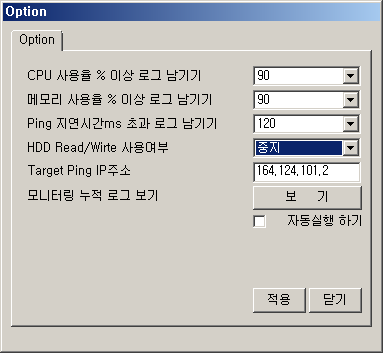


Log files are typically created with the Result.log file in the program location path.

Open as Notepad when "View" is selected in Options.

You can see CPU, RAM usage, share, ping delay, and disconnected status.

As shown below, the process usage is coming out, and this operation itself consumes a lot of CPU.;;

Due to heavy CPU usage, scanning and filtering all processes at slow speeds is a load.

So I set this to work only once every 30 seconds.

For example, if you set up 80% CPU monitoring, you log the load-bearing process at the first 80% point.

Do the same after 30 seconds. (Once every 30 seconds)


Download

https://hiperv.tistory.com/3


https://www.virustotal.com/#/file/4bf1960f4dd907abcd836e47d0039825981d21eec3679d83993154c5e1ff5d98/detection


2 engines detected this file

SHA-256 : 4bf1960f4dd907abcd836e47d0039825981d21eec3679d83993154c5e1ff5d98

File name : SimpleMonitor.zip

File size :711.42 KB

Last analysis : 2017-08-28 00:04:27 UTC


2020년 12월 1일 화요일

Simple monitoring 1.1 - Ping,RAM,CPU monitoring program

 Hello~!

I renewed the monitoring program that I made before.
When monitoring CPU usage, you can see which processes have a large share.
Successfully added features.  You can also detect ping delays and request time out and leave a log.
The HDD read/write usage feature is slightly higher (using 0 to 1 second)
Set to "Stop" for users with lag due to CPU load.

This is the execution screen. By default, the ping test graph is displayed!!!
The default ping target address is the dacom DNS server!!!


Go to the bottom slide bar to adjust the graph size ratio.


Shows basic CPU, RAM, and Ping information.


You can do a hard check usage (hdd) read and write.
How the data is total (current usage) : From left, read


Optional settings have log settings based on CPU and memory utilization.
Logging is possible depending on the ping MS speed and the ping target address is also set.
When logging is disabled, select "Disable" in the combobox!!
When using HDD read/write usage, CPU shares may increase slightly.
In this case, you can set the "stop" setting in Options.

When you check AutoPlay, it is displayed on the tray icon at the start of the window.


Typically, log files are created in the program's location path.
When you select "View" in Options, it opens in Notepad.
You can see CPU, RAM usage, and share, and you can see ping delay and loss status.
The process usage is shown below, but this operation itself consumes a lot of CPU.;;
Scanning and filtering all processes while slow due to heavy CPU usage is a load.
So I set this up to work only once every 30 seconds.
For example, if you put 80% of CPU monitoring on the line, you log the load-bearing process at the first 80% over.
Do the same after 30 seconds. (once in 30 seconds)


When a log file is created, the tray icon displays an alert as shown below.
Press the Close button to enter the tray icon.

To completely shut down the program, you can select Exit from the menu or Exit from the Tray menu.


DownloadSite


https://hiperv.tistory.com/3


Update history


64bit Only

https://www.virustotal.com/gui/file/4bf1960f4dd907abcd836e47d0039825981d21eec3679d83993154c5e1ff5d98/details


2/61 engines detected this file  


Basic Properties

MD5 9228bf133486099e1f5324624690ce3e

SHA-1 529c0323bca6a9b06b01f775af41925fef7eda2f

SHA-256 4bf1960f4dd907abcd836e47d0039825981d21eec3679d83993154c5e1ff5d98

Vhash 0158d53310981484887d1db698892513

SSDEEP 12288:HcY7Ylpf2/lnc68FjIjQvKuVAvMXCBNG9kHlEzHUP7mZ//B3ksJ/:R+xC8FsSKuA2CBNxFq4m//B/

File type ZIP

Magic Zip archive data, at least v1.0 to extract

ZIP compressed archive (100%)

File size 711.42 KB (728489 bytes)

History

First Submission 2017-08-28 00:04:27

Last Submission 2017-08-28 00:04:27

Last Analysis 2017-08-28 00:04:27

Earliest Contents Modification 2017-08-28 09:02:48

Latest Contents Modification 2017-08-28 09:02:48

MSI MAG 321UP QD-OLED X24 후기

 MSI MAG 321UP QD-OLED X24를 구매해서 사용해 보니 만족도가 기대 이상입니다. 가장 먼저 선명하고 왜곡 없는 훌륭한 색감 표현력이 눈에 띕니다. QD-OLED 패널 특유의 압도적인 명암비 덕분에 텍스트 가독성이 뛰어나고, 오랫동안 ...